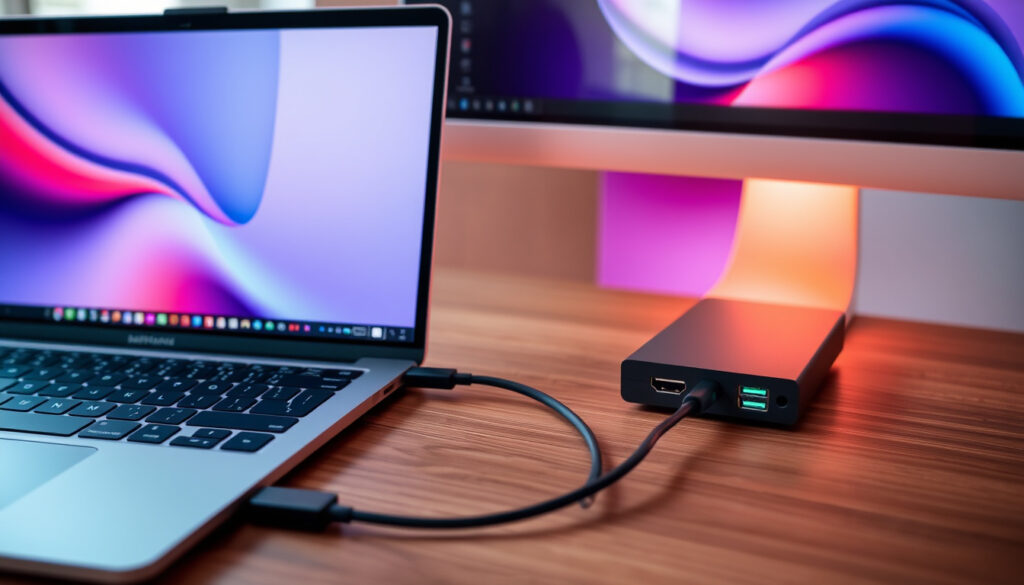
How to Connect External Monitor to Laptop: HDMI, USB-C Guide
Plugging a second screen into your laptop sounds simple, but anyone who’s stared at a blank monitor while Windows scrambles for a signal knows the frustration. Most detection problems trace back to three culprits: a loose cable, a missing driver, or a USB-C port that doesn’t do video. This guide walks through each connection type—HDMI, USB-C, and wireless—and spells out the exact steps to get your external display recognized on Windows 10 or 11.
Common ports on laptops: HDMI, USB-C, DisplayPort · Windows setting path: Start > Settings > System > Display · Multiple displays option: Extend, Duplicate, Second screen only · Quick key combo: Windows + P · Top fix: Update graphics drivers
Quick snapshot
- HDMI direct connect works on most laptops (Microsoft Support)
- Windows settings control display modes (Microsoft Support)
- Driver updates resolve a significant portion of detection failures (Tech YouTube Channel)
- Exact USB-C compatibility varies by model and manufacturer
- Specific firmware versions for docking stations may affect detection
- Windows 11 USB-C issues reported in community discussions since 2023 (Microsoft Learn)
- Systematic troubleshooting resolves majority of cases (Dell Community)
Users report specific patterns in monitor detection failures that help narrow down the root cause.
| Item | Detail |
|---|---|
| Default key combo | Windows + P |
| Settings path | System > Display > Multiple displays |
| Common adapter | USB-C to HDMI |
| Detection fix | Update graphics drivers |
| USB-C reset duration | 40 seconds (power button hold) |
| HDMI reset duration | 30 seconds (power button hold) |
How can I use an external monitor with my laptop?
Setting up an external monitor starts with identifying what ports your laptop actually has. Most modern laptops include HDMI, USB-C with DisplayPort Alt Mode, or a dedicated DisplayPort connector. The port type determines which cable you need and whether you’ll need an adapter.
Check laptop and monitor ports
Before buying any cable, examine both devices. HDMI ports are typically labeled “HDMI” and are trapezoid-shaped. USB-C ports that support video output will usually have a small display icon (a monitor outline or “DP”) near the port. If you only see a USB symbol, that port likely doesn’t output video.
Power on and select input source
Connect the cable first, then power on the monitor. On the monitor itself, use the physical buttons or on-screen menu to select the correct input source—HDMI 1, HDMI 2, USB-C, or DisplayPort depending on which port you’re using. Many monitors auto-detect, but manual selection eliminates one variable during troubleshooting.
Configure display settings in Windows
Once connected, Windows should detect the monitor automatically. If it doesn’t, press Windows + P to open the projection panel, then select Extend, Duplicate, or Second screen only. To access full settings, go to Start > Settings > System > Display and click Multiple displays > Detect.
The implication: skipping the monitor’s input selection means Windows keeps showing a blank screen even when everything else is correct.
How can I get my laptop to connect to my monitor?
Different connection methods suit different setups. HDMI offers the most straightforward path for most users, while USB-C works well for newer laptops or when you want to charge your device through the same cable. Wireless connections eliminate cables entirely but introduce latency considerations.
Connect with HDMI cable
HDMI remains the most compatible option. Standard HDMI cables work directly between most laptops and monitors without adapters. Connect one end to your laptop’s HDMI port and the other to the monitor’s HDMI input, then select that input on your monitor. Audio travels over the same cable, so you’ll get sound through the monitor’s speakers automatically.
Use USB-C or adapter
USB-C connections require the port to support DisplayPort Alt Mode or Thunderbolt. Not all USB-C ports output video—some are data-only or power-delivery-only. If your laptop has USB-C without video support, you’ll need an adapter that converts USB-C DisplayPort Alt Mode to HDMI or DisplayPort. Alternatively, a USB-C docking station can add multiple video outputs while also providing ethernet, USB-A ports, and power passthrough.
Wireless connection options
Windows supports wireless displays through Miracast. Go to Start > Settings > System > Display and click Connect a wireless display. Your laptop will search for nearby Miracast-capable monitors or adapters. Wireless works best for productivity setups; gaming or video editing may experience perceptible lag. Wi-Fi Direct adapters offer another path if your monitor or TV doesn’t have built-in Miracast support.
“Not all USBC ports are created equal. Only ports with DisplayPort Alt Mode or Thunderbolt capability can output video signals.”
“For USB-C detection issues on Windows 11, users report success holding the power button for exactly 40 seconds after unplugging everything.”
Users report several steps that work reliably across different laptop brands when troubleshooting wireless display connections.
- Open Start > Settings > System > Display and click Connect a wireless display
- Wait for the laptop to scan for nearby Miracast devices
- Select your monitor or adapter from the detected devices list
- If prompted, enter the PIN shown on the monitor
- Configure display mode via Windows + P if needed
Why doesn’t my laptop connect to an external monitor?
When a monitor stays dark after connection, the problem usually falls into one of three buckets: hardware (cable or port failure), software (missing or outdated drivers), or configuration (wrong input selected or display settings misadjusted). Working through each systematically identifies the culprit within minutes.
Cable and port compatibility
Start by checking the cable itself. Swap the cable for a known-working one if possible. Inspect both ends for bent pins, particularly on HDMI connectors where the pins are delicate. Dust accumulation in ports can also prevent proper contact—use compressed air to clean gently without pushing debris further in.
Driver and update issues
Outdated graphics drivers cause a significant portion of detection failures. Open Device Manager, expand Display adapters, right-click your graphics card, and select Update driver. If Windows reports the driver is current, visit your GPU manufacturer’s website (NVIDIA, AMD, or Intel) for the latest driver package.
Display detection steps
Press Windows + P to cycle through display modes—this often jumpstarts recognition. If the monitor still doesn’t appear, go to Settings > System > Display, scroll to Multiple displays, and click Detect. For USB-C connections, unplug the cable, wait ten seconds, and reconnect. Some users report success by connecting HDMI and USB-C simultaneously, which can trigger OEM software to recognize multi-monitor configurations.
Graphics driver updates resolve a notable portion of monitor detection issues, but outdated drivers aren’t always obvious—Windows may report your current driver is up to date even when a newer version fixes a specific detection bug.
Why is my laptop not recognizing a monitor?
Recognition failures differ from connection failures in that the cable works but Windows fails to detect the display. This typically points to software detection settings, BIOS configuration, or hardware-level port issues that prevent the system from even attempting communication with the monitor.
Force detect in settings
The most direct fix lives in Windows display settings. Navigate to Settings > System > Display > Multiple displays and click Detect. This forces Windows to rescan for connected displays. If the monitor appears but shows as “Generic PnP Monitor” or “Default Monitor,” right-click it in Device Manager and choose Update driver to install the correct monitor profile.
Check for multiple monitors
When using multiple monitors, test each one individually before activating multi-monitor mode. Connect Monitor A, confirm detection, then connect Monitor B. Some laptops with hybrid graphics (integrated + discrete GPU) need the internal display active for the external port to function properly—try closing the laptop lid partially to keep the internal display awake while using the external monitor.
USB-C specific fixes
USB-C detection issues on Windows 11 often respond to a power reset. Unplug all accessories, then hold the power button for exactly 40 seconds—this clears residual charge in USB-C controllers. For persistent issues, installing the Lenovo Monitor Driver has resolved detection problems even on non-Lenovo laptops, according to user reports on Microsoft’s community forums. Dell users can open Dell Display Manager and enable Display Matrix Control after connecting multiple displays via USB-C hub.
“Outdated or corrupted drivers are often the culprit for monitor detection failures.”
What this means: laptop owners using Dell hardware should check both Device Manager and Dell’s proprietary software when troubleshooting USB-C monitor connections.
Do I need special cables to connect a monitor?
Most users don’t need anything beyond a standard HDMI cable, but USB-C setups have hidden requirements that catch many people off guard. Understanding what each port actually supports prevents wasted purchases and frustration.
HDMI vs DisplayPort
Standard HDMI cables work immediately with HDMI ports—no configuration, no drivers, no special mode. DisplayPort offers slightly higher bandwidth for high-refresh-rate monitors (144Hz or above at native resolution), but HDMI 2.0 and later handle most current monitors adequately. For 4K monitors at 60Hz, either cable type performs equally.
Adapters for USB-C
USB-C to HDMI adapters require the source USB-C port to support DisplayPort Alt Mode. Adapters that claim to convert “USB-A” to HDMI don’t work for video output—USB-A ports carry data only. When purchasing adapters, verify the product description explicitly mentions video output capability. Cable quality matters significantly; cheap adapters frequently fail to maintain stable connections, especially at higher resolutions.
Wireless alternatives
If physical cables are impractical, Miracast adapters plug into the monitor’s HDMI port and create a wireless connection your laptop can detect. These work well for office productivity but introduce input lag that makes them unsuitable for gaming or video editing. Latency varies by adapter model—budget options may add 50ms or more.
HDMI remains the safest default choice: it works across virtually all laptops and monitors without adapters, carries audio, and costs less than specialized USB-C cables. Reserve USB-C for when your laptop lacks HDMI or you need power delivery through the same cable.
Related reading: Convert HEIC to JPG Free Guide for Windows Mac · How to Backup Photos to Cloud Step-by-Step Guide
Once your first external display is linked via HDMI or USB-C, this dual monitor setup guide details extending to a productive two-screen workflow on Windows.
Frequently asked questions
How to connect Dell monitor to laptop with HDMI?
Connect an HDMI cable from your Dell monitor’s HDMI port to your laptop’s HDMI port. Power on the monitor, select HDMI as the input source using the monitor’s menu buttons, then press Windows + P in Windows and choose your preferred display mode. If detection fails, go to Settings > System > Display > Multiple displays > Detect.
How to connect external monitor to laptop Windows 10?
Connect the monitor via HDMI, USB-C, or DisplayPort. Press Windows + P to open projection options and select Extend, Duplicate, or Second screen only. For full settings, right-click the desktop and choose Display settings, then scroll to find the Detect button under Multiple displays.
Why won’t my external monitor work with my laptop?
Common causes include: wrong input selected on the monitor, loose or damaged cable, outdated graphics drivers, or a USB-C port without DisplayPort Alt Mode. Start by checking the monitor’s input source, swapping the cable, and updating graphics drivers via Device Manager. If using USB-C, verify the port supports video output.
Can I connect a monitor directly to my laptop?
Yes, most laptops have dedicated video output ports. Connect the monitor’s cable to your laptop’s HDMI, USB-C (with DisplayPort Alt Mode), or DisplayPort output. The laptop’s internal display remains active by default, but you can configure it to use only the external monitor or extend across both.
How to connect laptop to monitor without HDMI?
If your laptop only has USB-C, use a USB-C to HDMI adapter or a USB-C DisplayPort cable. For DisplayPort-only laptops, use a DisplayPort to HDMI adapter. Wireless options via Miracast also work without any physical cable. Adapters require the USB-C port to support video output—check for a display icon near the port.
How do I get my laptop to recognize additional new monitors?
Go to Settings > System > Display > Multiple displays and click Detect. If the new monitor still doesn’t appear, check Device Manager under Monitors to see if it’s listed as “Generic PnP Monitor”—if so, update the driver. Test the new monitor with its own cable first before adding it to an existing multi-monitor setup.
Why is USB-C not detecting the monitor?
USB-C detection failures usually stem from the port lacking DisplayPort Alt Mode or Thunderbolt capability—data-only USB-C won’t output video. Try holding the power button for 40 seconds to reset USB-C controllers. Update graphics drivers, try a different USB-C cable, and verify the monitor’s USB-C input is selected. Some docking stations need firmware updates to function properly.
More related posts
 Adidas Spezial Women – Sizing, Fit and Buying Guide
 Paolo Banchero Biography: Ethnicity, NBA Career & More
 Katherine Ryan: Children, Cancer, Miscarriage & Husband
 Snoop Dogg AFL Grand Final – Setlist, Time and Controversy
 George Harrison: Cause of Death, Funeral, and Family Life
 PBKS vs RR – IPL 2024 Head to Head, Results and Fantasy Tips
 Vermont Medical Clinic – Adult Primary Care in South Burlington
 PBKS vs MI Rain Threat: Venue Shift & Washout Rules